A complete guide to AI accelerators for deep learning inference — GPUs, AWS Inferentia and Amazon Elastic Inference
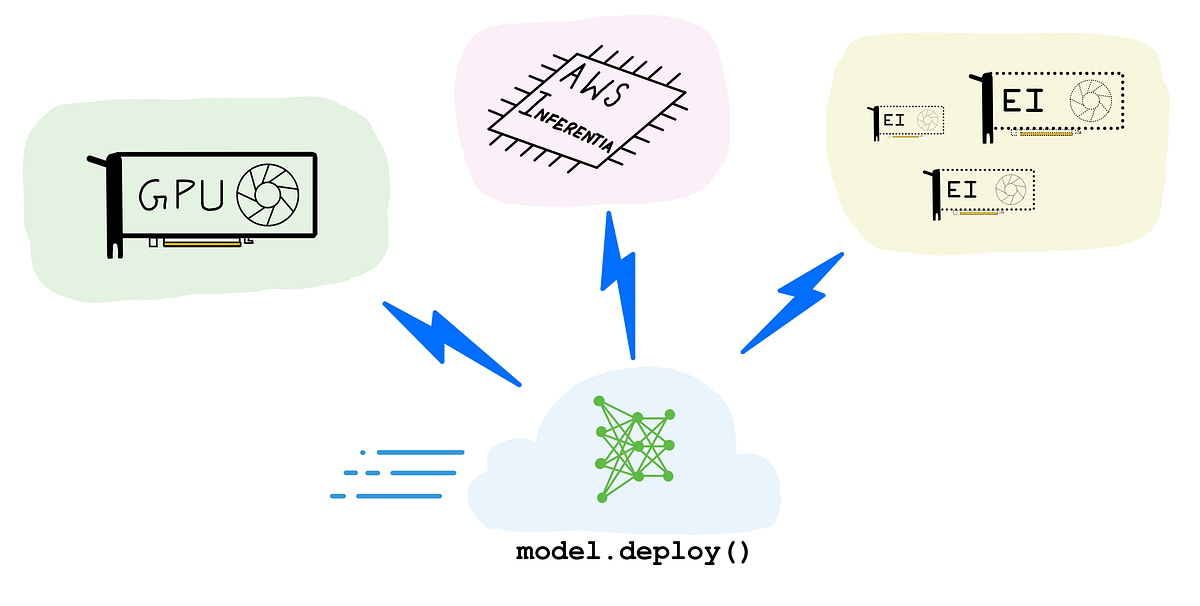
How to choose — GPUs, AWS Inferentia and Amazon Elastic Inference for inference (Illustration by author)
Let’s start by answering the question “What is an AI accelerator?”
An AI accelerator is a dedicated processor designed to accelerate machine learning computations. Machine learning, and particularly its subset, deep learning is primarily composed of a large number of linear algebra computations, (i.e. matrix-matrix, matrix-vector operations) and these operations can be easily parallelized. AI accelerators are specialized hardware designed to accelerate these basic machine learning computations and improve performance, reduce latency and reduce cost of deploying machine learning based applications.
Do I need an AI accelerator for machine learning (ML) inference?
Let’s say you have an ML model as part of your software application. The prediction step (or inference) is often the most time consuming part of your application that directly affects user experience. A model that takes several hundreds of milliseconds to generate text translations or apply filters to images or generate product recommendations, can drive users away from your “sluggish”, “slow”, “frustrating to use” app.
By speeding up inference, you can reduce the overall application latency and deliver an app experience that can be described as “smooth”, “snappy”, and “delightful to use”. And you can speed up inference by offloading ML model prediction computation to an AI accelerator.
With great market needs comes great many product alternatives, so naturally there is more than one way to accelerate your ML models in the cloud.
In this blog post, I’ll explore three popular options:
(Illustration by author)
- GPUs: Particularly, the high-performance NVIDIA T4 and NVIDIA V100 GPUs
- AWS Inferentia: A custom designed machine learning inference chip by AWS
- Amazon Elastic Inference (EI): An accelerator that saves cost by giving you access to variable-size GPU acceleration, for models that don’t need a dedicated GPU
Choosing the right type of hardware acceleration for your workload can be a difficult choice to make. Through the rest of this post, I’ll walk you through various considerations such as target throughput, latency, cost budget, model type and size, choice of framework, and others to help you make your decision. I’ll also present plenty of code examples and discuss developer friendliness and ease of use with options.
Disclaimer: Opinions and recommendations in this article are my own and do not reflect the views of my current or past employers.
A little bit of hardware accelerator history
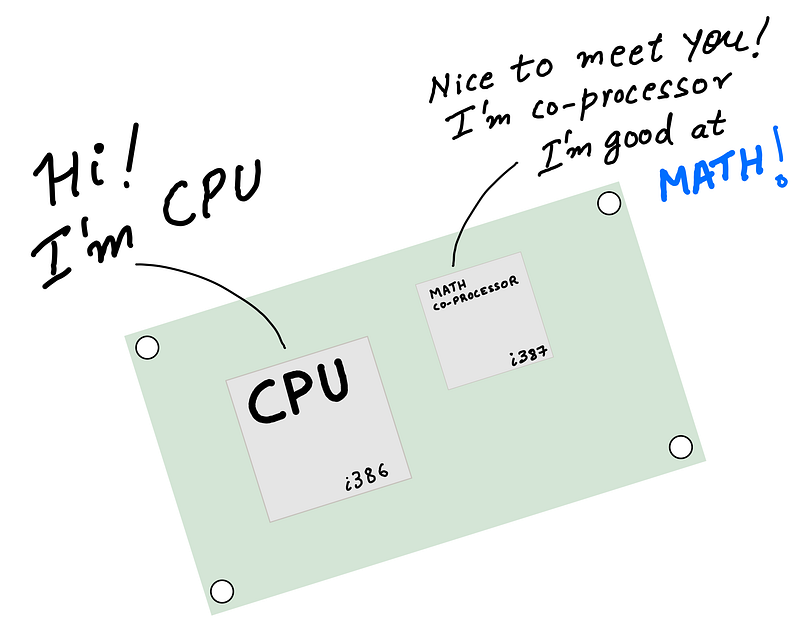
(Illustration by author)
In the early days of computing (in the 70s and 80s), to speed up math computations on your computer, you paired a CPU (Central Processing Unit) with an FPU (floating-point unit) aka math coprocessor. The idea was simple — allow the CPU to offload complex floating point mathematical operations to a specially designed chip, so that the CPU could focus on executing the rest of the application program, run the operating system etc. Since the system had different types of processors (the CPU and the math coprocessor) the setup was sometimes referred to as heterogeneous computing.
Fast forward to the 90s, and the CPUs got faster, better and more efficient, and started to ship with integrated floating-point hardware. The simpler system prevailed, and coprocessors and heterogeneous computing fell out of fashion for the regular user.
Around the same time specific types of workloads started to get more complex. Designers demanded better graphics, engineers and scientists demanded faster computers for data processing, modeling and simulations. This meant there was some need (and a market) for high-performance processors that could accelerate “special programs” much faster than a CPU, freeing up the CPU to do other things. Computer graphics was an early example of workload being offloaded to a special processor. You may know this special processor by its common name, the venerable GPU.
The early 2010s saw yet another class of workloads — deep learning, or machine learning with deep neural networks — that needed hardware acceleration to be viable, much like computer graphics. GPUs were already in the market and over the years have become highly programmable unlike the early GPUs which were fixed function processors. Naturally, ML practitioners started using GPUs to accelerate deep learning training and inference.
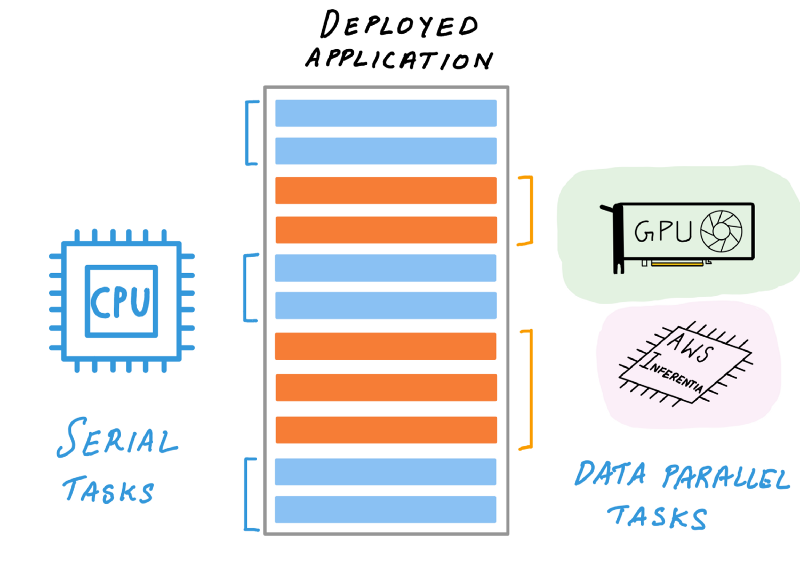
CPU can offload complex machine learning operations to AI accelerators (Illustration by author)
Today’s deep learning inference acceleration landscape is much more interesting. CPUs acquired support for advanced vector extensions (AVX-512) to accelerate matrix math computations common in deep learning. GPUs acquired new capabilities such as support for reduced precision arithmetic (FP16 and INT8) further accelerating inference.
In addition to CPUs and GPUs, today you also have access to specialized hardware, with custom designed silicon built just for deep learning inference. These specialized processors, also called Application Specific Integrated Circuits or ASICs can be far more performant and cost effective compared to general purpose processors, if your workload is supported by the processor. A great example of such specialized processors is AWS Inferentia, a custom-designed ASIC by AWS for accelerating deep learning inference.
The right choice of hardware acceleration for your application may not be obvious at first. In the next section, we’ll discuss the benefits of each approach and considerations such as throughput, latency, cost and other factors that will affect your choice.
AI accelerators and how to choose the right option
It’s hard to answer general questions such as “is GPU better than CPU?” or “is CPU cheaper than a GPU” or “is an ASIC always faster than a GPU”. There really isn’t a single hardware solution that works well for every use case and the answer depends on your workload and several considerations:
- Model type and programmability: model size, custom operators, supported frameworks
- Target throughput, latency and cost: deliver good customer experience at a budget
- Ease of use of compiler and runtime toolchain: should have fast learning curve, doesn’t require hardware knowledge
While considerations such as model support and target latency are objective, ease of use can be very subjective. Therefore, I caution against general recommendation that doesn’t consider all of the above for your specific application. Such high level recommendations tends to be biased.
Let’s review these key considerations.
1. Model type and programmability
(Illustration by author)
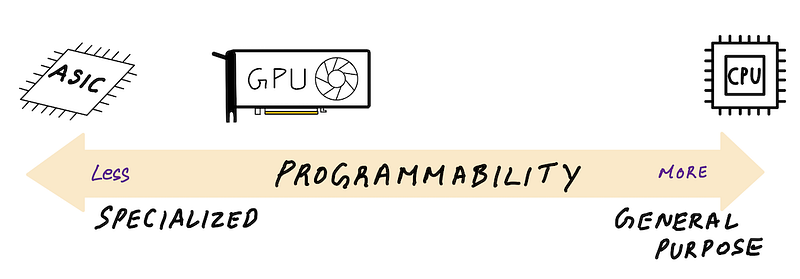
One way to categorize AI accelerators is based on how programmable they are. On the “fully programmable” end of the spectrum there are CPUs. As general purpose processors, you can pretty much write custom code for your machine learning model with custom layers, architectures and operations.
On the other end of the spectrum are ASICs such as AWS Inferentia that have a fixed set of supported operations exposed via it’s AWS Neuron SDK compiler. Somewhere in between, but closer to ASICs are GPUs, that are far more programmable than ASICs, but far less general purpose than CPUs. There is always going to be some trade off between being general purpose and delivering performance.
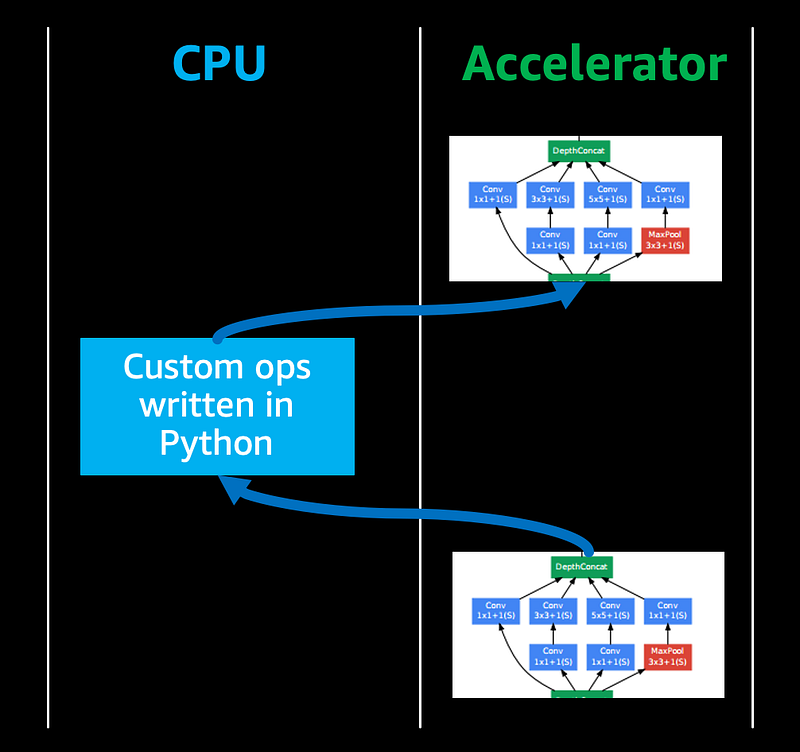
Custom code may fall back to CPU execution, reducing the overall throughput (Illustration by author)
If you’re pushing the boundaries of deep learning research with custom neural network operations, you may need to author custom code for custom operations. And you’d typically do this in high level languages like Python.
Most AI accelerators can’t automatically accelerate custom code written in high level languages and therefore that piece of code will fall back to CPUs for execution, reducing the overall inference performance.
NVIDIA GPUs have the advantage that if you want more performance out of your custom code you can reimplement them using CUDA programming language and run them on GPUs. But if your ASIC’s compiler doesn’t support the operations you need, then CPU fall back may result in lower performance.
2. Target throughput, latency and cost
In general specialized processors such as AWS Inferentia tend to offer lower price/performance ratio and improve latency vs. general purpose processors. But in the world of AI acceleration, all solutions can be competitive, depending on the type of workload.
GPUs are throughput processors, and can deliver high throughput for a specified latency. If latency is not critical (batch processing, offline inference) then GPU utilization can be kept high, making them the most cost effective option in the cloud. CPUs are not parallel throughput devices, but for real time inference of smaller models, CPUs can be the most cost effective, as long the inference latency is under your target latency budget. AWS Inferentia’s performance and lower cost could make it the most cost effective and performant option vs both CPUs and GPUs if your model is fully supported by AWS Neuron SDK compiler for acceleration on AWS Inferentia.
This is indeed a nuanced topic and is very workload dependent. In the subsequent sections we’ll take a closer look at performance, latency and cost for each accelerator. If a specific choice doesn’t work for you, no problem, it’s easy to switch options in the cloud till you find the right option for you.
3. Compiler and runtime toolchain and ease of use
To accelerate your models on AI accelerators, you typically have to go through a compilation step that analyzes the computational graph and optimizes it for the target hardware to get the best performance. When deploying on a CPU, the deep learning framework has everything you need, so additional SDKs and compilers are typically not required.
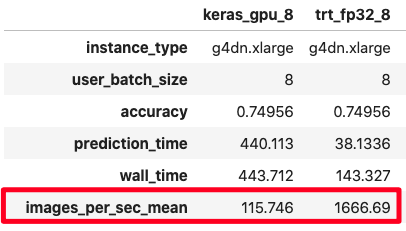
If you’re deploying to a GPU, you can rely on a deep learning framework to accelerate your model for inference, but you’ll be leaving performance on the table. To get the most out of your GPU, you’ll have to use a dedicated inference compiler such as NVIDIA TensorRT.
(screenshot by author)
In some cases, you can get over 10 times extra performance vs. using the deep learning framework (see figure). We’ll see later in the code examples section, how you can reproduce these results.
NVIDIA TensorRT is two things — inference compiler and a runtime engine. By compiling your model with TensorRT, you can get better performance and lower latency since it performs a number of optimizations such as graph optimization and quantizations. Likewise, when targeting AWS Inferentia, AWS Neuron SDK compiler will perform similar optimizations to get the most out of your AWS Inferentia processor.
Let’s dig a little deeper into each of these AI accelerator options
Accelerator Option 1: GPU-acceleration for inference
(Illustration by author)
You train your model on GPUs, so it’s natural to consider GPUs for inference deployment. After all, GPUs substantially speed up deep learning training, and inference is just the forward pass of your neural network that’s already accelerated on GPU. This is true, and GPUs are indeed an excellent hardware accelerator for inference.
First, let’s talk about what GPUs really are.
GPUs are first and foremost throughput processors, as this blog post from NVIDIA explains. They were designed to exploit inherent parallelism in algorithms and accelerate them by computing them in parallel. GPUs started out as specialized processors for computer graphics, but today’s GPUs have evolved into programmable processors, also called General Purpose GPU (GPGPU). They are still specialized parallel processors, but also highly programmable for a narrow range of applications which can be accelerated with parallelization.
As it turns out, the high-performance computing (HPC) community had been using GPUs to accelerate linear algebra calculations long before deep learning. Deep neural networks computations are primarily composed of similar linear algebra computations, so a GPU for deep learning was a solution looking for a problem. It is no surprise that Alex Krizhevsky’s AlexNet deep neural network that won the ImageNet 2012 competition and (re)introduced the world to deep learning was trained on readily available, programmable consumer GPUs by NVIDIA.
GPUs have gotten much faster since then and I’ll refer you to NVIDIA’s website for their latest training and inference benchmarks for popular models. While these benchmarks are a good indication of what a GPU is capable of, your decision may hinge on other considerations discussed below.
1. GPU inference throughput, latency and cost
Since GPUs are throughput devices, if your objective is to maximize sheer throughput, they can deliver best in class throughput per desired latency, depending on the GPU type and model being deployed. An example of a use-case where GPUs absolutely shine is offline or batch inference. GPUs will also deliver some of the lowest latencies for prediction for small batches, but if you are unable to keep your GPU utilization at its maximum at all times, due to say sporadic inference request (fluctuating customer demand), your cost / inference request goes up (because you are delivering fewer requests for the same GPU instance cost). For these situations you’re better off using Amazon Elastic Inference which lets you access just enough GPU acceleration for lower cost.
In the example section we’ll see comparision of GPU performance across different precisions (FP32, FP16, INT8).
2. GPU inference supported model size and options
On AWS you can launch 18 different Amazon EC2 GPU instances with different NVIDIA GPUs, number of vCPUs, system memory and network bandwidth. Two of the most popular GPUs for deep learning inference are the NVIDIA T4 GPUs offered by G4 EC2 instance type and NVIDIA V100 GPUs offered by P3 EC2 instance type.
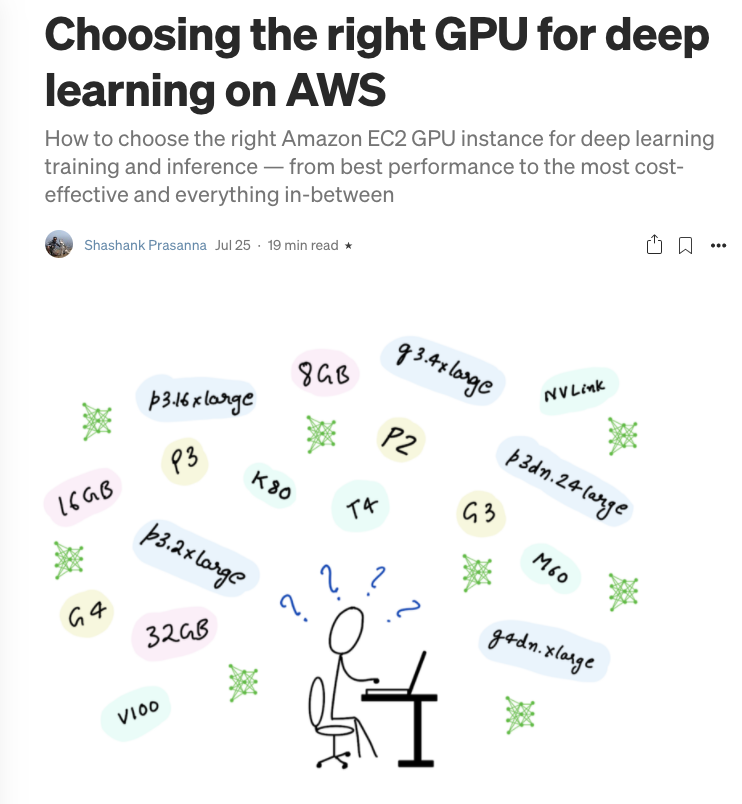
Blog post: Choosing the right GPU for deep learning on AWS (screenshot by author)
For a fully summary of all GPU instance type of AWS read my earlier blog post: Choosing the right GPU for deep learning on AWS
G4 instance type should be the go-to GPU instance for deep learning inference deployment.
Based on the NVIDIA Turing architecture, NVIDIA T4 GPUs feature FP64, FP32, FP16, Tensor Cores (mixed-precision), and INT8 precision types. They also have 16 GB of GPU memory which can be plenty for most models and combined with reduced precision support.
If you need more throughput or need more memory per GPU, then P3 instance types offer a more powerful NVIDIA V100 GPU and with p3dn.24xlarge instance size, you can get access to NVIDIA V100 with up to 32 GB of GPU memory for large models or large images or other datasets.
3. GPU inference model type, programmability and ease of use
Unlike ASICs such as AWS Inferentia which are fixed function processors, a developer can use NVIDIA’s CUDA programming model to code up custom layers that can be accelerated on an NVIDIA GPU. This is exactly what Alex Krizhevsky did with AlexNet in 2012. He hand coded custom CUDA kernels to train his neural network on GPU. He called his framework cuda-convnet and you could say cuda-convnet was the very first deep learning framework. If you’re pushing the boundary of deep learning and don’t want to leave performance on the table a GPU is the best option for you.
Programmability with performance is one of GPUs greatest strengths
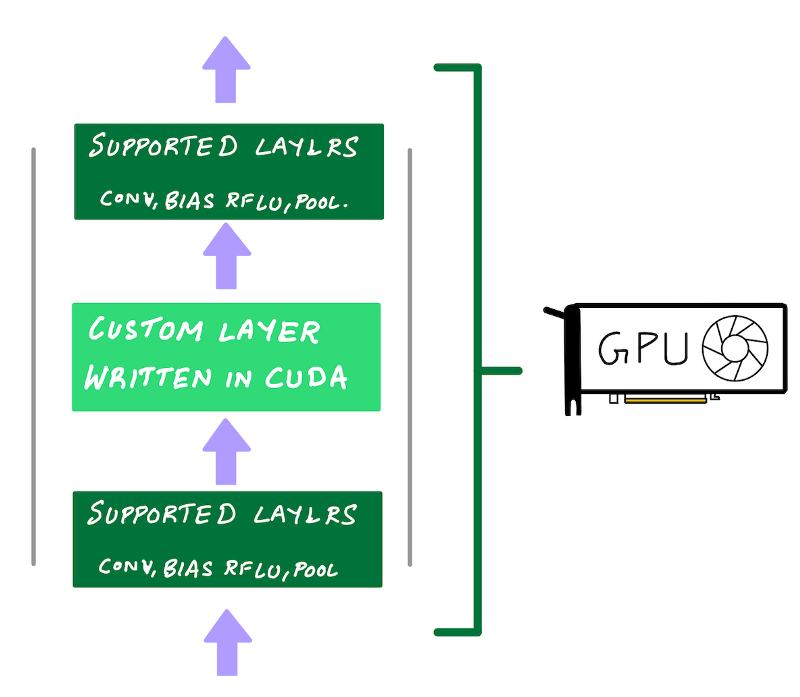
Use NVIDIA’s CUDA programming model to code up custom layers that can be accelerated on an NVIDIA GPU. (Illustration by author)
Of course, you don’t need to write low-level GPU code to do deep learning. NVIDIA has made neural network primitives available via libraries such as cuDNN and cuBLAS and deep learning frameworks such as TensorFlow, PyTorch and MXNet use these libraries under the hood so you get GPU acceleration for free by simply using these frameworks. This is why GPUs score high marks for ease of use and programmability.
4. GPU performance with NVIDIA TensorRT
If you really want to get the best performance out of your GPUs, NVIDIA offers TensorRT, a model compiler for inference deployment. Does additional optimizations to a trained model, and a full list is available on NVIDIA’s TensorRT website. The key optimizations to note are:
- Quantization: reduce model precision from FP32 (single precision) to FP16 (half precision) or INT8 (8-bit integer precision), thereby speeding up inference due to reduced amount of computation
- Graph fusion: fusing multiple layers/ops into a single function call to a CUDA kernel on the GPU. This reduces the overhead of multiple function call for each layer/op
Deploying with FP16 is straight forward with NVIDIA TensorRT. The TensorRT compiler will automatically quantize your models during the compilation step.
To deploy with INT8 precision, the weights and activations of the model need to be quantized so that floating point values can be converted into integers using appropriate ranges. You have two options.
- Option 1: Perform quantization aware training. In quantization aware training, the error from quantizing weights and tensors to INT8 is modeled during training, allowing the model to adapt and mitigate this error. This requires additional setup during training.
- Option 2: Perform post training quantization. In post-quantization training, no pre-deployment preparation is required. You will provide a training model in full precision (FP32), and you will also need to provide a dataset sample from your training dataset that the TensorRT compiler can use to run a calibration step to generate quantization ranges. In Example 2 below, we’ll take a look at implementing Option 2.
Examples of GPU-accelerated inference
The following examples was tested on Amazon EC2 g4dn.xlarge using the following AWS Deep Learning AMI: Deep Learning AMI (Ubuntu 18.04) Version 35.0. To run TensorRT, I used the following NVIDIA TensorFlow Docker image: nvcr.io/nvidia/tensorflow:20.08-tf2-py3
Dataset: ImageNet Validation dataset with 50000 test images, converted to TFRecord
Model: TensorFlow implementation of ResNet50
You can find the full implementation for the examples below on this Jupyter Notebook:
Example 1: Deploying ResNet50 TensorFlow model (1) framework’s native GPU support and (2) with NVIDIA TensorRT
TensorFlow’s native GPU acceleration support just works out of the box, with no additional setup. You won’t get the additional performance you can get with NVIDIA TensorRT, but you can’t argue with how easy life becomes when things just work.
Running inference with frameworks’ native GPU support takes all of 3 lines of code:
model = tf.keras.models.load_model(saved_model_dir)
for i, (validation_ds, batch_labels, _) in enumerate(dataset):
    pred_prob_keras = model(validation_ds)
But you’re really leaving performance on the table (some times 10x the performance). To increase the performance and utilization of your GPU, you have to use an inference compiler and runtime like NVIDIA TensorRT.
The following code shows how to compile your model with TensorRT. You can find the full implementation on GitHub
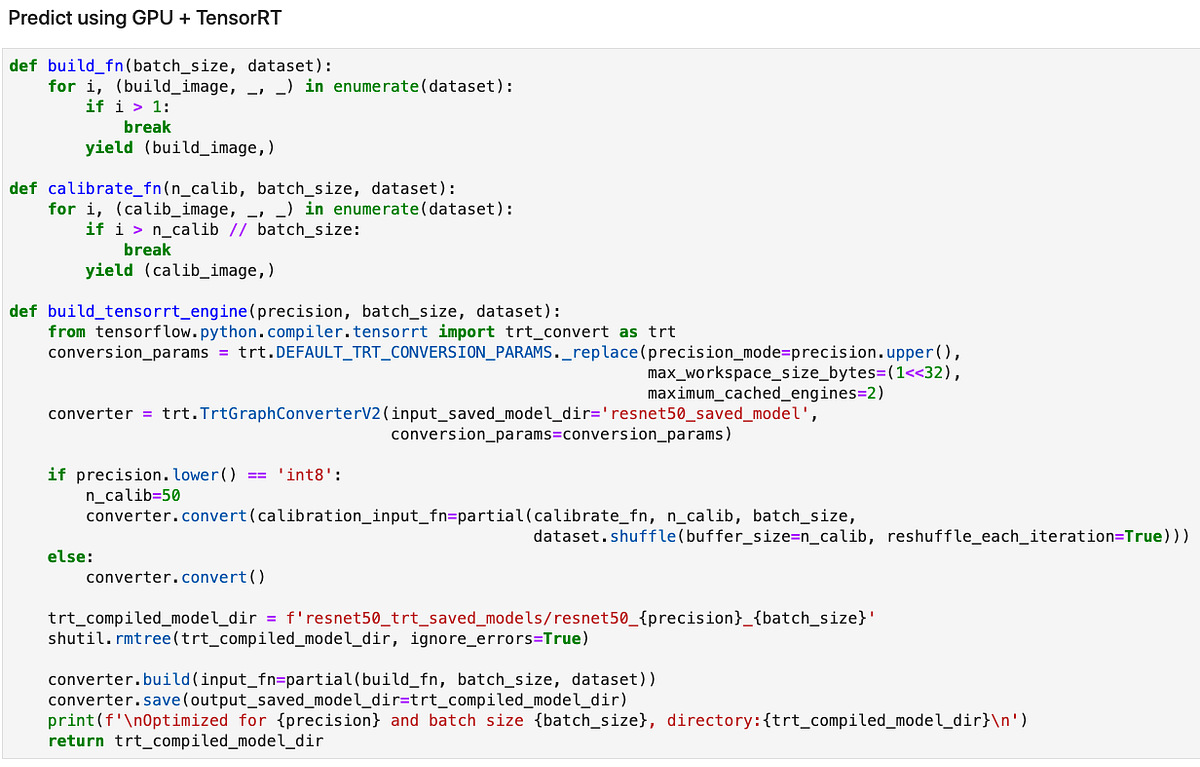
Excerpt from: https://github.com/shashankprasanna/ai-accelerators-examples/blob/main/gpu-tf-tensorrt-resnet50.ipynb (screenshot by author)
TensorRT compilation has the following steps:
- Provide TensorRT’s
TrtGraphConverterV2(for TensorFlow2) with your uncompiled TensorFlow saved model - Specify TensorRT compilation parameters. The most important parameter is the precision (FP32, FP16, INT8). If you’re compiling with INT8 support, TensorRT expects you to provide it with a representative sample from your training set to calibrate scaling factors. You’ll do this by providing a python generator to argument
calibration_input_fnwhen you callconverter.convert(). You don’t need to provide additional data for FP32 and FP16 optimizations. - TensorRT compiles your model and saves it as a TensorFlow saved model that includes special TensorRT operators which accelerates inference on GPU and runs them more efficiently.
Below is a comparison of accuracy and performance of TensorFlow ResNet50 inference with:
- TensorFlow native GPU acceleration
- TensorFlow + TensorRT FP32 precision
- TensorFlow + TensorRT FP16 precision
- TensorFlow + TensorRT INT8 precision
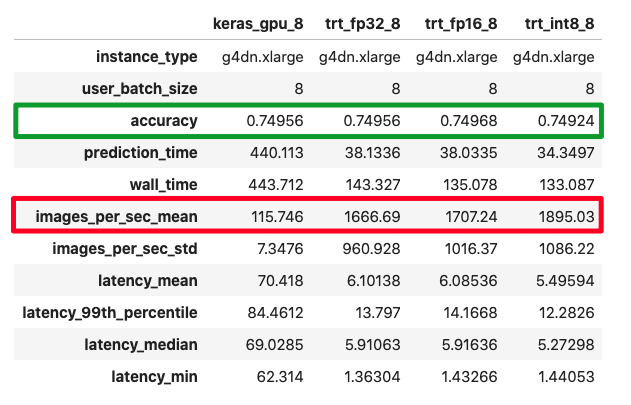
(screenshot by author)
I measured not just performance but also accuracy, since reducing precision means there is information loss. On the ImageNet test dataset we see negligible loss in accuracy across all precisions, with minor boost in throughput. Your mileage may vary for your model.
Example 2: Hosting a ResNet50 TensorFlow model using Amazon SageMaker
In Example 1, we tested the performance offline, but in most cases you’ll be hosting your model in the cloud as an endpoint that client applications can submit inference requests to. One of the simplest ways of doing this is to use Amazon SageMaker hosting capabilities.
This example was tested on Amazon SageMaker Studio Notebook. Run this notebook using the following Amazon SageMaker Studio conda environment: TensorFlow 2 CPU Optimized. The full implementation is available here:
Hosting a model endpoint with SageMaker involves the following simple steps:
- Create a tar.gz archive file using your TensorFlow saved model and upload it to Amazon S3
- Use the Amazon SageMaker SDK API to create a TensorFlowModel object
- Deploy the TensorFlowModel object to a G4 EC2 instance with NVIDIA T4 GPU
Create model.tar.gz with the TensorFlow saved model:
$ tar cvfz model.tar.gz -C resnet50_saved_model .
Upload model to S3 and deploy:
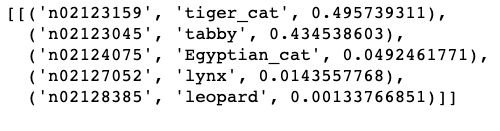
You can test the model by invoking the endpoint as follows:
Output:
Accelerator Option 2: AWS Inferentia for inference
(Illustration by author)
AWS Inferentia is a custom silicon designed by Amazon for cost-effective, high-throughput, low latency inference.
James Hamilton (VP and Distinguished Engineer at AWS) goes into further depth about ASICs, general purpose processors, AWS Inferentia and the economics surrounding them in his blog post: AWS Inferentia Machine Learning Processor, which I encourage you to read if you’re interested in AI hardware.
The idea of using specialized processors for specialized workloads is not new. The chip in your noise cancelling headphone and the video decoder in your DVD player are examples of specialized chips, sometimes also called an Application Specific Integrated Circuit (ASIC).
ASICs have 1 job (or limited responsibilities) and are optimized to do it well. Unlike general purpose processors (CPUs) or programmable accelerators (GPU), large parts of the silicon are not dedicated to run arbitrary code.
AWS Inferentia was purpose built to offer high inference performance at the lowest cost in the cloud. AWS Inferentia chips can be accessed via the Amazon EC2 Inf1 instances which come in different sizes with 1 AWS Inferentia chip per instance all the way up to 16 AWS Inferential chips per instance. Each AWS Inferentia chip has 4 NeuronCores and supports FP16, BF16 and INT8 data types. NeuronCore is a high-performance systolic-array matrix-multiply engine and each has a two stage memory hierarchy, a very large on-chip cache.
In most cases, AWS Inferentia might be the best AI accelerator for your use case, if your model:
- Was trained in MXNet, TensorFlow, PyTorch or has been converted to ONNX
- Has operators that are supported by the AWS Neuron SDK
If you have operators not supported by the AWS Neuron SDK, you can still deploy it successfully on Inf1 instances, but those operations will run on the host CPU and won’t be accelerated on AWS Inferentia. As I stated earlier, every use case is different, so compile your model with AWS Neuron SDK and measure performance to make sure it meets your performance, latency and throughput needs.
1. AWS Inferentia throughput, latency and cost
AWS has compared performance of AWS Inferentia vs. GPU instances for popular models, and reports lower cost for popular models: YOLOv4 model, OpenPose, and has provided examples for BERT and SSD for TensorFlow, MXNet and PyTorch. For real-time applications, AWS Inf1 instances are amongst the least expensive of all the acceleration options available on AWS and AWS Inferentia can deliver higher throughput at target latency and at lower cost compared to GPUs and CPUs. Ultimately your choice may depend on other factors discussed below.
2. AWS Inferentia supported models, operators and precisions
AWS Inferentia chip supports a fixed set of neural network operators exposed via the AWS Neuron SDK. When you compile a model to target AWS Inferentia using the AWS Neuron SDK, the compiler will check your model for supported operators for your framework. If an operator isn’t supported or if the compiler determines that a specific operator is more efficient to execute on CPU, it’ll partition the graph to include CPU partitions and AWS Inferentia partitions. The same is also true for Amazon Elastic Inference which we’ll discuss in the next section. If you’re using TensorFlow with AWS Inferentia here is a list of all TensorFlow ops accelerated on AWS Inferentia.
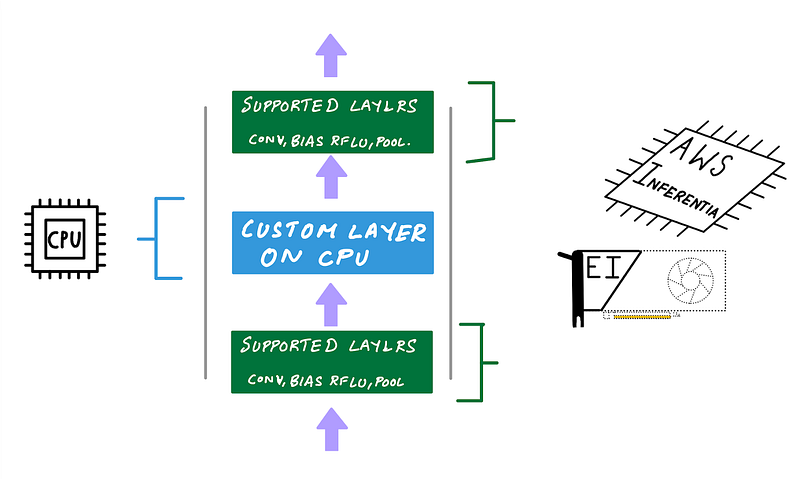
Custom operations will be part of CPU partitions and will run on the host instance’s CPU (Illustration by author)
If you trained your model in FP32 (single precision), AWS Neuron SDK compiler will automatically cast your FP32 model to BF16 to improve inference performance. If you instead, prefer to provide a model in FP16, either by training in FP16 or by performing post-training quantization, AWS Neuron SDK will directly use your FP16 weights. While INT8 is supported by the AWS Inferentia chip, the AWS Neuron SDK compiler currently does not provide a way to deploy with INT8 support.
3. AWS Inferentia flexibility and control over how Inferentia NeuronCores are used
In most cases, AWS Neuron SDK makes AWS Inferentia really easy to use. A key difference in the user experience of using AWS Inferentia and GPUs is that AWS Inferentia lets you have more control over how each core is used.
AWS Neuron SDK supports two ways to improve performance by utilizing all the NeuronCores: (1) batching and (2) pipelining. Since the AWS Neuron SDK compiler is an ahead-of-time compiler, you have to enable these options explicitly during the compilation stage.
Let’s take a look at what these are and how these work.
a. Use batching to maximize throughput for larger batch sizes
When you compile a model with AWS Neuron SDK compiler with batch_size, greater than one, batching is enabled. During inference your model weights are stored in external memory, and as forward pass is initiated, a subset of layer weights, as determined by the neuron runtime, is copied to the on-chip cache. With the weights of this layer on the cache, forward pass is computed on the entire batch.
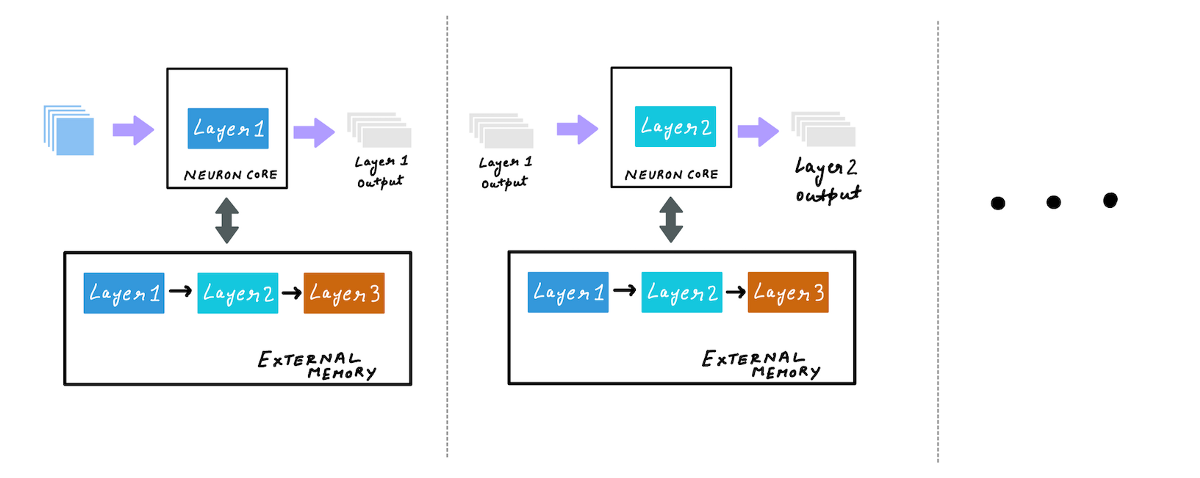
(Illustration by author)
After that the next set of layer weights are loaded into the cache, and the forward pass is computed on the entire batch. This process continues until all weights are used for inference computations. Batching allows for better amortization of the cost of reading weights from the external memory by running inference on large batches when the layers are still in cache.
All of this happens behind the scenes and as a user, you just have to set a desired batch size using an example input, during compilation.
Even though batch size is set at the compilation phase, with dynamic batching enabled, the model can accept variable sized batches. Internally the neuron runtime will break down the user batch size into compiled batch sizes and run inference.
b. Using pipelining to improve latency by caching the model across multiple NeuronCores
During batching, model weights are loaded to the on-chip cache from the external memory layer by layer. With pipelining, you can load the entire model weights into the on-chip cache of multiple cores. This can reduce the latency since the neuron runtime does not have to load the weights from external memory. Again all of this happens behind the scenes, as a user you just set the desired number of cores using —-num-neuroncores during the compilation phase.
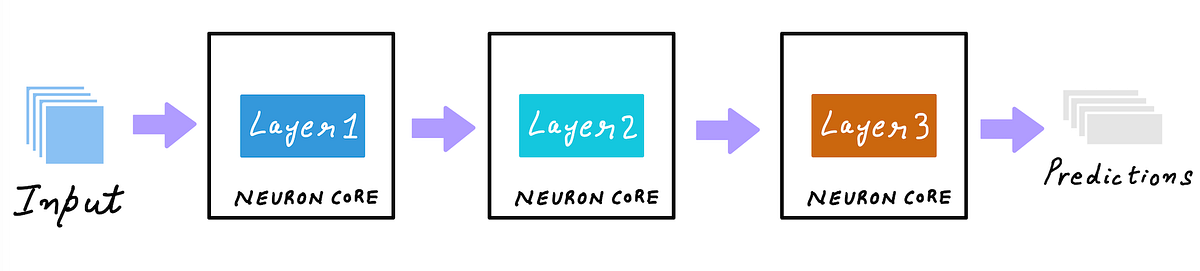
(Illustration by author)
Batching and pipelining can be used together. However, you have to try different combinations of pipelining cores and compiled batch sizes to determine what works best for your model.
During the compilation step, all combinations of batch sizes and number of neuron cores (for pipelining), may not work. You will have to determine the working combinations of batch size and number of neuron cores by running a sweep of different values and monitoring compiler errors.
Using all NeuronCores on your Inf1 instances
Depending on how you compiled your model you can either:
- Compile your model to run on a single NeuronCore with a specific batch size
- Compile your model by pipelining to multiple-NeuronCores with specific batch size
The least cost Amazon EC2 Inf1 instance type, inf1.xlarge has 1 AWS Inferentia chip with 4 NeuronCores. If you compiled your model to run on a single NeuronCore, tensorflow-neuron will automatically perform data parallel execution on all 4 NeuronCores. This is equivalent to replicating your model 4 times and loading it into each NeuronCore and running 4 Python threads to feed input to data to each core. Automatic data parallel execution does not work beyond 1 AWS Inferentia chip. If you want to replicate your model to all 16 NeuronCores on an inf1.6xlarge for example, you have to spawn multiple threads to feed all AWS Inferentia chips with data. In python you can use concurrent.futures.ThreadPoolExecutor.

(screenshot by author)
When you compile a model for multiple NeuronCores, the runtime will allocate different subgraphs to each NeuronCore (screenshot by author)

When you compile a model with pipelining, the runtime will allocate different subgraphs to each NeuronCore (screenshot by author)
4. Deploying multiple models on Inf1 instances
AWS Neuron SDK allows you to group NeuronCores into logical groups. Each group could have 1 or more NeuronCores and could run a different model. For example if you’re deploying on an inf1.6xlarge EC2 Inf1 instance, you have access to 4 Inferentia chips with 4 NeuronCores each i.e. a total of 16 NeuronCores. You could divide 16 NeuronCores into, let’s say 3 groups. Group 1 has 8 NeuronCores and will run a model that uses pipelining to use all 8 cores. Group 2 uses 4 NeuronCores and runs 4 copies of a model compiled with 1 neuron core. Group 3 uses 4 NeuronCores and runs 2 copies of a model compiled with 2 neuron cores with pipelining. You can specify this configuration using the NEURONCORE_GROUP_SIZES environment variable, and you’d set it to NEURONCORE_GROUP_SIZES=8,1,1,1,1,2,2
After that you simply have to load the model in the specified sequence within a single python process, i.e. load the model that’s compiled to use 8 cores first, then load the model that’s compiled to use 1 core four times, and then use load the model that’s compiled to use 2 cores, two times. The appropriate cores will be assigned to the model.
Examples of AWS Inferentia accelerated inference on Amazon EC2 Inf1 instances
AWS Neuron SDK comes pre-installed on AWS Deep Learning AMI, and you can also install the SDK and the neuron-accelerated frameworks and libraries TensorFlow, TensorFlow Serving, TensorBoard (with neuron support), MXNet and PyTorch.
The following examples were tested on Amazon EC2 Inf1.xlarge and Deep Learning AMI (Ubuntu 18.04) Version 35.0.
You can find the full implementation for the examples below on this Jupyter Notebook:
Example 1: Deploying ResNet50 TensorFlow model with AWS Neuron SDK on AWS Inferentia
In this example I compare 3 different options
- No batching, no pipelining: Compile ResNet50 model with batch size = 1 and number of cores = 1
- With batching, no pipelining: Compile ResNet50 model with batch size = 5 and number of cores = 1
- No batching, with pipelining: Compile ResNet50 model with batch size = 1 and number of cores = 4
You can find the full implementation in this Jupyter Notebook. I’ll just review the results here.
The comparison below shows that you get the best throughput with option 2 (batch size = 1, no pipelining) on Inf1.xlarge instances. You can repeat this experiment with other combinations on large Inf1 instances.
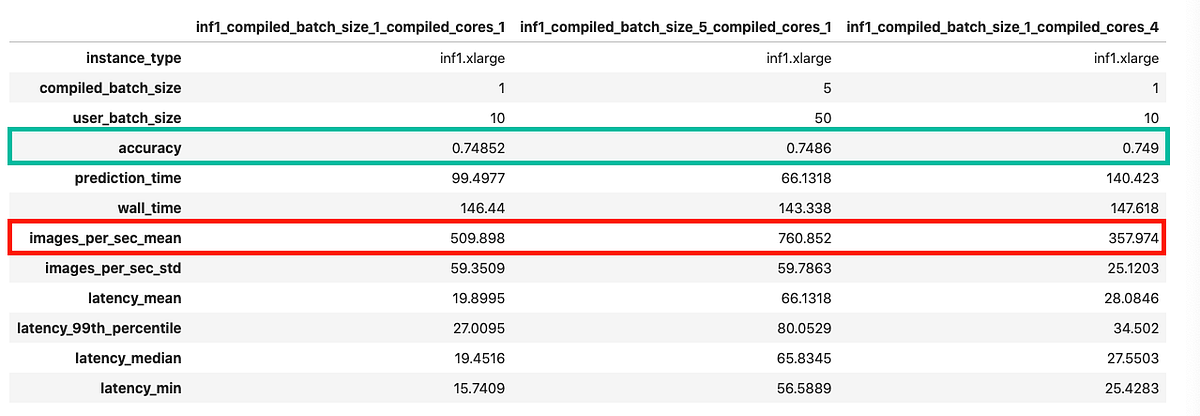
(Screenshot by author)
Accelerator Option 3: Amazon Elastic Inference (EI) acceleration for inference
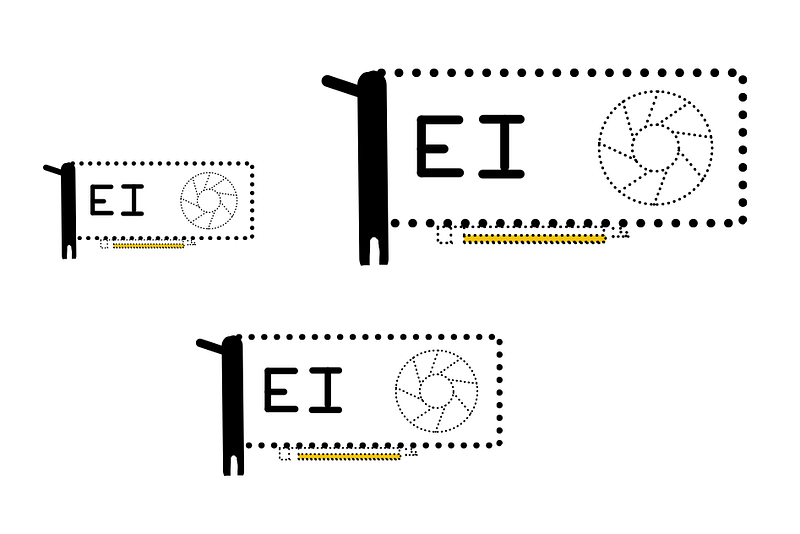
Amazon Elastic Inference (Illustration by author)
Amazon Elastic Inference (EI) allows you to add cost-effective variable-size GPU acceleration to a CPU-only instance without provisioning a dedicated GPU instance. To use Amazon EI, you simply provision a CPU-only instance such as Amazon EC2 C5 instance type, and choose from 6 different EI accelerator options at launch.
The EI accelerator is not part of the hardware that makes up your CPU instance, instead, the EI accelerator is attached through the network using an AWS PrivateLink endpoint service which routes traffic from your instance to the Elastic Inference accelerator configured with your instance. All of this happens seamlessly behind the scenes when you use an EI enabled serving frameworks such as TensorFlow serving.
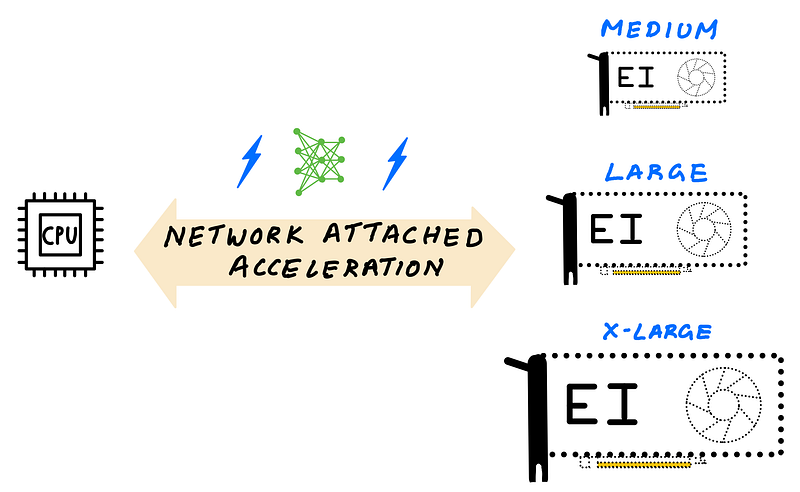
Elastic Inference lets you access variable-size GPU acceleration (Illustration by author)
Amazon EI uses GPUs to provide GPU acceleration, but unlike dedicated GPU instances, you can choose to add GPU acceleration that comes in 6 different accelerator sizes, that you can choose by Tera (trillion) Floating Point Operations per Second (TFLOPS) or GPU memory.
Why choose Amazon EI over dedicated GPU instances?
As I discussed earlier, GPUs are primarily throughput devices, and when dealing with smaller batches, common with real-time applications, GPUs tend to get underutilized when you deploy models that don’t need the full processing power or full memory of a GPU. Also, if you don’t have sufficient demand or multiple models to serve and share the GPU, then a single GPU may not be cost effective as cost/inference would go up.
You can choose from 6 different EI accelerators that offer 1–4 TFLOPS and 1–8 GB of GPU memory. Let’s say you have a less computationally demanding model with a small memory footprint, you can attach the smallest EI accelerator such as eia1.medium that offers 1 TFLOPS of FP32 performance and 1 GB of GPU memory to a CPU instance. If you have a more demanding model, you could attach an eia2.xlarge EI accelerator with 4 TFLOPS performance and 8 GB GPU memory to a CPU instance.
The cost of the CPU instance + EI accelerator would still be cheaper than a dedicated GPU instance, and can lower inference costs. You don’t have to worry about maximizing the utilization of your GPU since you’re adding just enough capacity to meet demand, without over-provisioning.
When to choose Amazon EI over GPU, and what EI accelerator size to choose?
Let’s consider the following hypothetical scenario. Let’s say your application can deliver a good customer experience if your total latency (app + network + model predictions) is under 200 ms. And let’s say, with a G4 instance type you can get total latency down to 40 ms which is well within your target latency. You’ve also tried deploying with a CPU-only C5 instance type you can only get total latency to 400 ms which does not meet your SLA requirements and results in poor customer experience.
With Elastic Inference, you can network attach just enough GPU acceleration to a CPU instance. After exploring different EI accelerator sizes (say eia2.medium, eia2.large, eia2.xlarge), you and get your total latency down to 180 ms with an eia2.large EI accelerators, which is under the desired 200 ms mark. Since EI is significantly cheaper than provisioning a dedicated GPU instance, you save on your total deployment costs.
1. Amazon Elastic Inference performance
Since the GPU acceleration is added via the network, EI adds some latency compared to a dedicated GPU instance, but will still be faster than a CPU-only instance, and more cost-effective than a dedicated GPU instance. A dedicated GPU instance will still deliver better inference performance vs EI, but if the extra performance doesn’t improve your customer experience, with EI you will stay under the target latency SLA, deliver good customer experience, and save on overall deployment costs. AWS has a number of blog posts that talk about performance and cost savings compared to CPUs and GPU using popular deep learning frameworks.
2. Supported model types, programmability and ease of use
Amazon EI supports models trained on TensorFlow, Apache MXNet, Pytorch and ONNX models. After you launch an Amazon EC2 instance with Amazon EI attached, to access the accelerator you need an EI enabled framework such as TensorFlow, PyTorch or Apache MXNet.
EI enabled frameworks come pre-installed on AWS Deep Learning AMI, but if you prefer installing it manually, a Python wheel file has also been made available.
Most popular models such as Inception, ResNet, SSD, RCNN, GNMT have been tested to deliver cost saving benefits when deployed with Amazon EI. If you’re deploying a custom model with custom operators, EI enabled framework, partitions the graph to run unsupported operators on the host CPU, and all support ops on the EI accelerator attached via the network. This makes using EI very simple.
Example: Deploying ResNet50 TensorFlow model using Amazon EI
This example was tested on Amazon EC2 c5.2xlarge the following AWS Deep Learning AMI: Deep Learning AMI (Ubuntu 18.04) Version 35.0
You can find the full implementation on this Jupyter Notebook here:
https://github.com/shashankprasanna/ai-accelerators-examples/blob/main/ei-tensorflow-resnet50.ipynb
Amazon EI enabled TensorFlow offers APIs that let you accelerate your models using EI accelerators, and behave just like TensorFlow API. As a developer you to make have minimal code changes.
To load model, you just have to run the following code:
from ei_for_tf.python.predictor.ei_predictor import EIPredictor
eia_model = EIPredictor(saved_model_dir,accelerator_id=0)
If you have more than one EI accelerators attached to your instance, you can specify them using the accelerator_id argument. Simply replace your TensorFlow model object with eia_model and the rest of your script remains the same, and your model is now accelerated on Amazon EI.
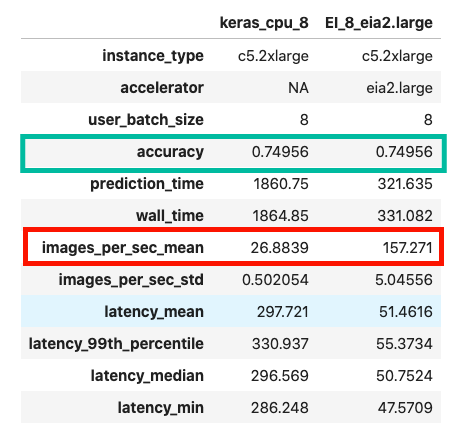
The following figure compares CPU-only inference vs. EI accelerated inference on the same CPU instance. In this example you see over 6 times speed up with an EI accelerator.
(Screenshot by author)
Summary
If there is one thing I want you to take away from the blog post, it is this: Deployment needs are unique and there really is no one size fits all. Review your deployment goals, compare them with the discussions in the article, and test out all options. Cloud makes it easy to try before you commit.
Keep these considerations in mind as you choose:
- Model type and programmability (model size, custom operators, supported frameworks)
- Target throughput, latency and cost (to deliver good customer experience at a budget)
- Ease of use of compiler and runtime toolchain (fast learning curve, doesn’t require hardware knowledge)
If programmability is very important, and you have low performance targets, then CPU might just work for you.
If programmability and performance is important, then you can develop custom CUDA kernels for custom ops that are accelerated on GPUs.
If you want the lowest cost option, and your model is supported on AWS Inferentia, you can save on overall deployment costs.
Ease of use is subjective, but nothing can beat native framework experience. But with a little bit of extra effort both AWS Neuron SDK for AWS Inferentia and NVIDIA TensorRT for NVIDIA GPUs can deliver higher performance, thereby reducing cost / inference.
Thank you for reading. In this article I was only able to give you a glimpse of all the sample code we discussed in this article. If you want to reproduce the results visit the following GitHub repo:
https://github.com/shashankprasanna/ai-accelerators-examples
If you found this article interesting, please check out my other blog posts on medium.
Want me to write on a specific machine learning topic? I’d love to hear from you! Follow me on twitter (@shshnkp), LinkedIn or leave a comment below.